Connecting your on-premises AdminConsult
This guide is addressed to your IT team. It describes how to enable Dytto to securely reach your on-premises AdminConsult (Syneton/Visma) API by installing a lightweight connector on a server within your network.
How it works
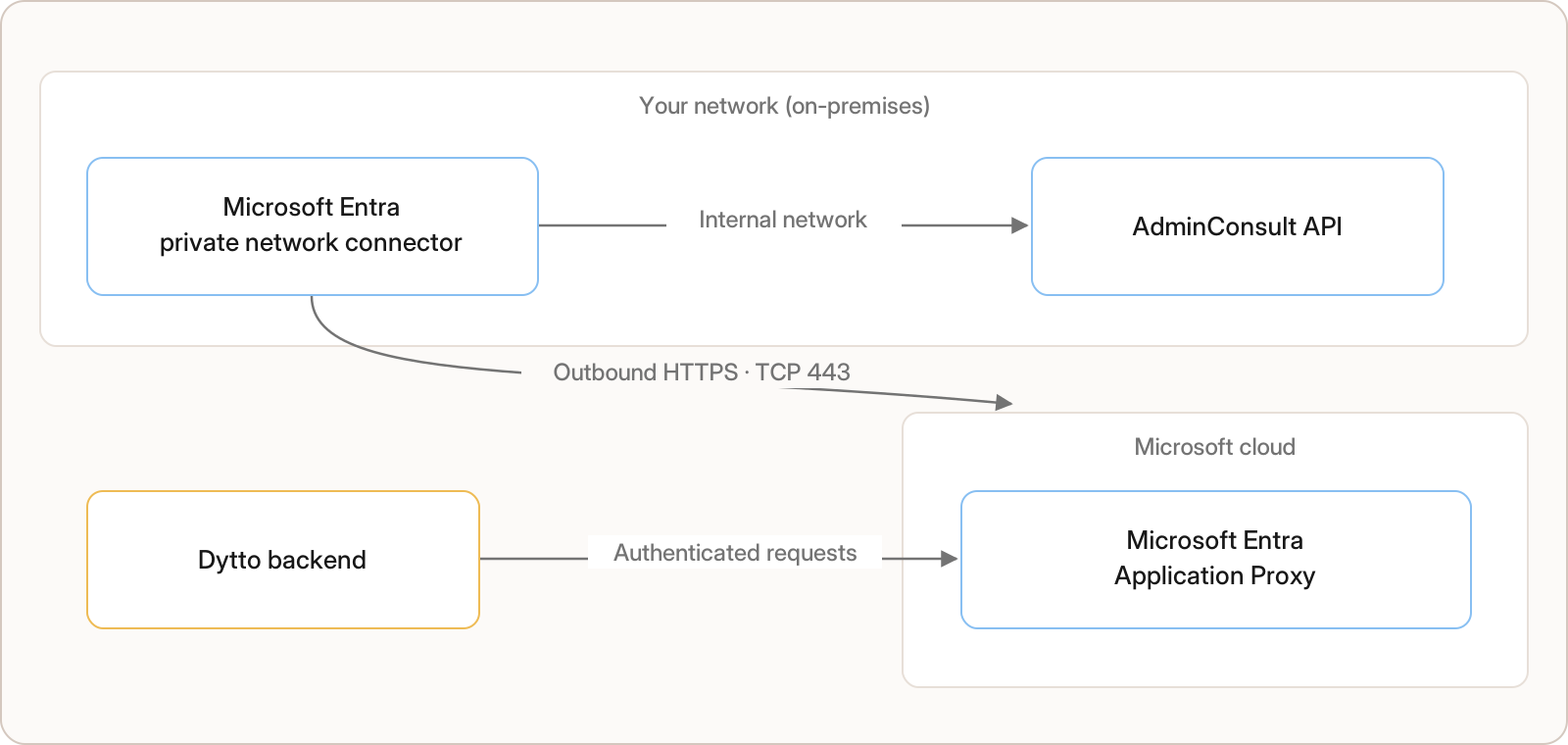
You install a connector on a Windows server inside your network.
The connector initiates outbound-only HTTPS (port 443) connections to Microsoft. It dials out; no inbound connectivity is required.
Dytto reaches your AdminConsult API through that outbound channel.
Security implications
No inbound firewall rules. You do not open any ports to the internet.
No VPN and no public IP are required on your AdminConsult server.
Outbound only. The connector needs to reach Microsoft endpoints on TCP 443.
Access can be revoked at any time by uninstalling the connector.
Prerequisites
Requirement | Detail |
|---|---|
Windows Server | 2016 or later, 2 vCPU / 8 GB RAM (Microsoft’s connector minimum) |
Network reach | The server must reach your AdminConsult API (e.g. |
Outbound access | TCP 443 to |
TLS | TLS 1.2 enabled |
From Dytto | A short-lived access token, generated when you are ready to proceed |
The connector may share a server with other workloads, but a dedicated VM is the simplest deployment model. Do not install it on a machine that already runs another Entra or Azure AD connector.
Setup steps
1. Prepare the server
Verify the server can reach your AdminConsult API (for example, open the API base URL in a browser or use
Invoke-WebRequestfrom that server).Confirm outbound TCP 443 is permitted to
downloads.dytto.aiand the Microsoft endpoints listed above.Ensure TLS 1.2 is enabled (the default on current Windows Server releases).
2. Obtain the access token from Dytto
Dytto generates a short-lived access token valid for approximately 60 to 90 minutes and delivers it over a secure channel. Request it only when the server is ready for installation. If the token expires, ask Dytto to generate a fresh one.
3. Download, install, and register the connector
Open Windows PowerShell as Administrator on the connector server. Download Dytto’s preconfigured installation script:
Save the access token generated by Dytto as C:\token.txt. The file must contain only the token, without quotation marks or explanatory text. Then run:
The script is preconfigured for Dytto; no Tenant ID or connector parameters are required. It downloads Microsoft’s current connector, installs and registers it, verifies the Windows services, and removes C:\token.txt after a successful run.
Installation is unattended. When finished, the Windows services Microsoft Entra private network connector and Microsoft Entra private network connector updater should both be in a Running state.
4. Provide Dytto with your AdminConsult API address
Send us the internal URL the connector should forward requests to, for example http://adminconsult.internal:8731/. Dytto configures the routing on our side; no further action is required from your team.
5. Confirmation
Dytto validates the connection end-to-end and notifies you once it is active. Onboarding is complete at this point.
Verifying the installation
Services. Open Services and confirm both Microsoft Entra private network connector services display Running.
Connector health. Dytto monitors connector health from our side and will alert you to any issues.
Troubleshooting
Symptom | Likely cause | Fix |
|---|---|---|
Script download fails |
| Allow outbound TCP 443 to |
Registration fails immediately | Access token expired (more than about 90 minutes old) | Delete |
Invalid token | Token was copied with quotes, spaces, or other text | Save only the exact Dytto-generated token in |
Services not Running | Microsoft endpoints blocked | Allow outbound 80/443 to the Microsoft endpoints above; check proxy and firewall |
Connector installs but Dytto cannot reach AdminConsult | Server cannot reach the API, or wrong internal URL | Verify the server can reach the AdminConsult API; re-confirm the internal URL with Dytto |
Removing access
Uninstall the Microsoft Entra private network connector from the server (via Add/Remove Programs, or the installer’s uninstall option). Access is terminated immediately.
Privacy and scope
The connector forwards only the requests Dytto makes to the specific AdminConsult API URL you provide. It is not a general-purpose tunnel into your network.
All traffic is encrypted over TLS. Dytto authenticates every request.
Contact your Dytto representative, or support@dytto.ai, for the signed NDA/DPA and security questionnaire.